 PrintPiperOpen app
 SPREADSHEET PRINTING GUIDE
Print Place Cards from Excel or CSV
Print seating place cards straight from your guest list: save one reusable 90 × 50 mm flat-card design, import your Excel or CSV sheet, connect the Name and Table columns, and generate an A4 sheet with one personalized card per guest, in list order. This guide covers flat cards that lie on the table or slip into an optional holder — with exact field coordinates and a worked three-guest example. The dimensions and margins below are example assumptions for a custom plain-cardstock design: measure your printer’s non-printable edge before you commit to a full run.

Short answer: create a blank template with a 90 × 50 mm frame on A4 paper at 300 DPI, choose Grid sheet with a 6 mm gap and center alignment, set 2 mm padding, add a large centered name field and a smaller centered table field plus the downloadable cutting-outline background, save the template, then import your Excel or CSV guest list, connect the columns and click Generate files. Print at Actual size / 100% on cardstock and cut along the outer edge of the printed thin outlines. Three guest rows become three cards on one A4 page — not repeated copies — and no automatic seating allocation happens: you assign tables in the spreadsheet first.
Plan the seating list first
PrintPiper prints what your spreadsheet says — it does not design a seating chart, balance tables, or swap guests between tables. Decide every guest’s table in the spreadsheet before importing, keep one guest per row, and store the complete wording in the Table column. A text field holds exactly one variable, so a field cannot combine the literal word “Table” with a variable number: write Table 01 in the cell, not just 01.
A guest list is not an invitation list. Keep the columns minimal — Name and Table in the example — and do not collect dietary needs, emails or RSVP answers in the printed file. Rows print in spreadsheet order, so group the rows by table if that makes cutting and sorting faster.
Flat cards are the whole scope here. Folding, tenting and duplex printing are not supported at all — each card is a single-sided flat design. This sample is a custom 90 × 50 mm frame on plain cardstock; it does not walk through pre-cut tent or label stock (any Avery preset the app supports is a separate workflow), so plan on cards lying flat on the table or standing in an optional holder. The name badge tutorial covers lanyard-style event badges if that is the shape you need.
Set up the 90 × 50 mm template
Choose New template and set the values explicitly. Edit the template in this order — Frame (size, background, then text fields), then Page, then Layout — and only save once everything below is in place:
- Frame: width 90 mm, height 50 mm. Set padding to 2 mm on all sides (the default is 0, so enter it explicitly); padding shapes the usable text area and never prints.
- Frame background: upload the downloadable background.png under the frame’s Image template, choose the Contain fit, and after uploading explicitly set the frame dimensions to 90 × 50 mm instead of trusting the file. This artwork draws the thin cutting outline that prints — the outlines shown in the samples come from it, not from the grid itself.
- Page: A4 (210 × 297 mm) at 300 DPI, with 10 mm printer margins on every edge. Those margins are an example value: raise the margin if your printer’s non-printable edge is larger.
- Layout: Images per sheet = Grid sheet, column/row gap 6 mm, content alignment centered, bleed 0, crop marks off. The columns and rows auto-fit the printable area — this frame yields a 2 × 5 grid.

After adding the two text fields described in the next section, click Save template — the one save action in this workflow. Frame, background, fields, page and layout must all be finished first; CSV import appears only after the template is saved to your account.
The 2 × 5 grid holds 10 positions, but positions are not records: three guest rows produce three printed cards on one A4 page and the other cells stay empty. Grid capacity never raises export limits — the Free plan allows 10 records per export.
Text field positions
Add two separate text fields in the Frame view, one variable each. Coordinates are measured in millimetres from the upper-left of the 90 × 50 mm frame. When both fields are in place, save the template as described above.
| Field / variable | X / Y (mm) | W × H (mm) | Style |
|---|---|---|---|
| Guest name {{Name}} | 5 / 10 | 80 × 12 | Arial 18 pt bold, centered, shrink to fit |
| Table {{Table}} | 5 / 28 | 80 × 8 | Arial 12 pt, centered, shrink to fit |
Shrink text to fit keeps long guest names on one card. Check the longest real name in the preview before exporting.
Worked example: three guests
All names and tables below are fictional. The sample files are freely downloadable.
Download example XLSX
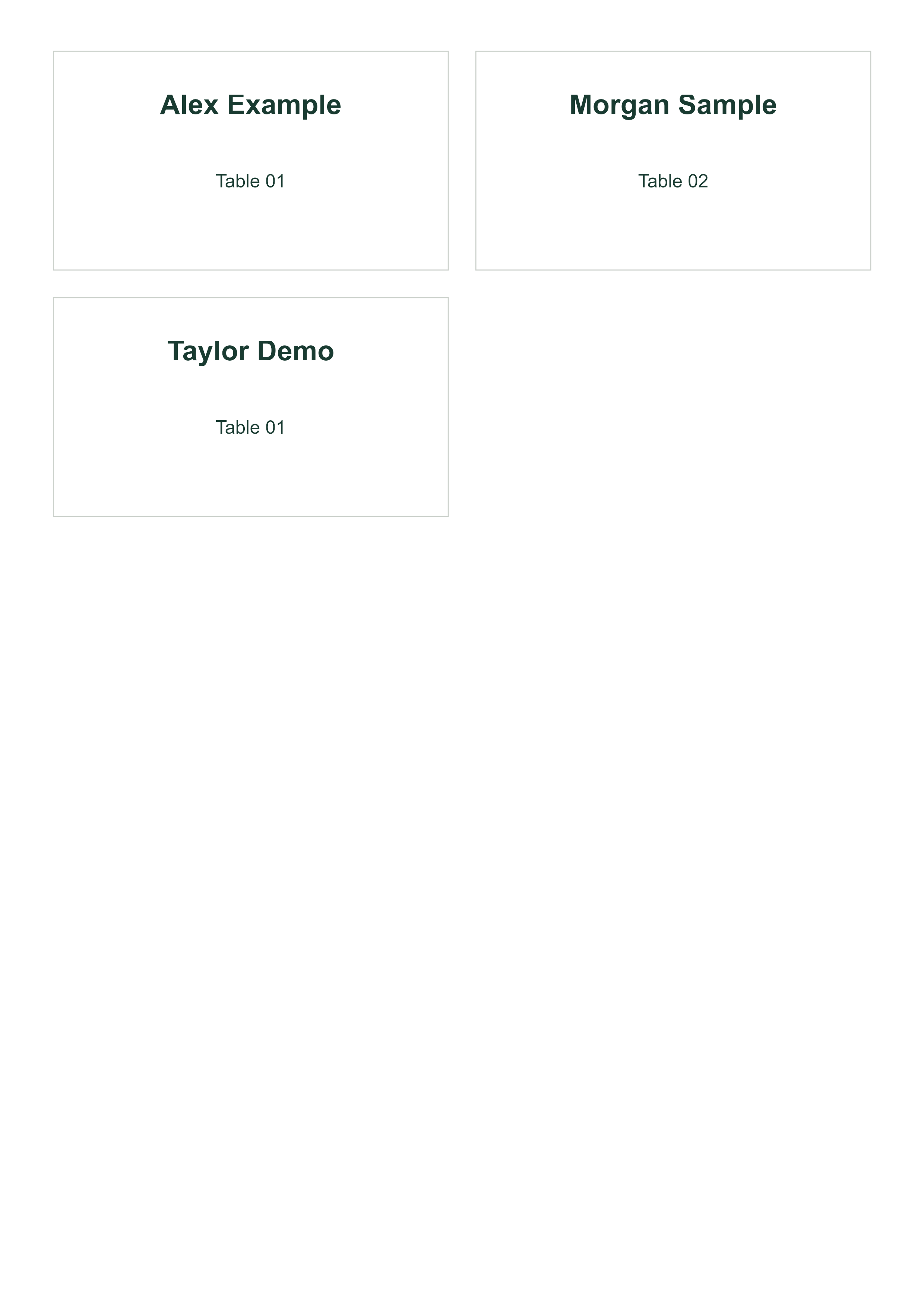
View the generated one-page PDF
Download the cutting-outline background
| Name | Table |
|---|---|
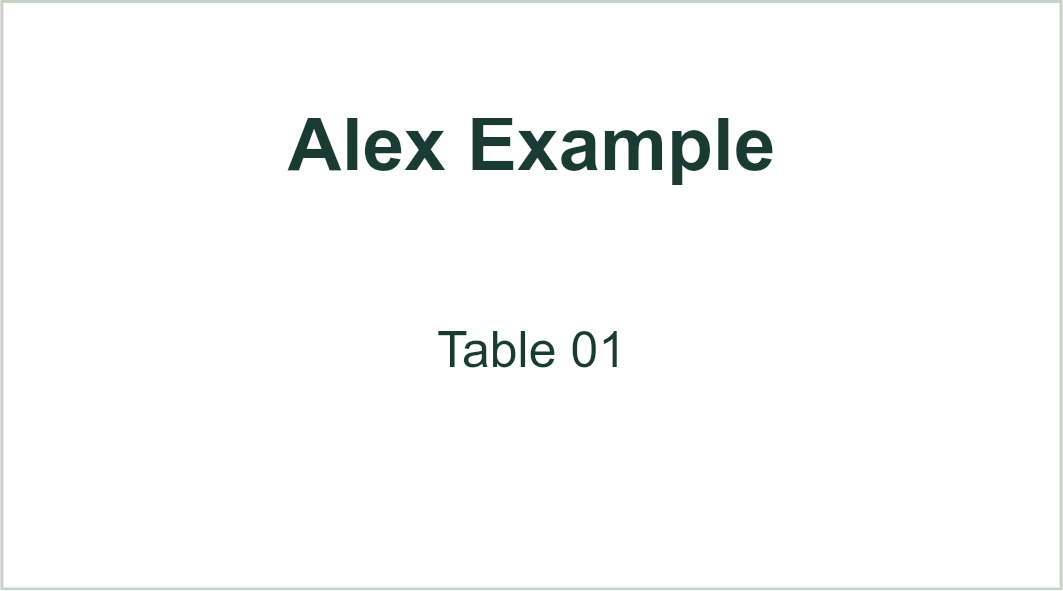
| Alex Example | Table 01 |
| Morgan Sample | Table 02 |
| Taylor Demo | Table 01 |
Each Table cell contains the complete text “Table 01” or “Table 02”, because the card’s table field prints the variable alone.
Reproduce the example exactly
Download template settings JSON and mapping reference. Both describe the setup above for reproduction; JSON files are not importable app templates. Recreate the template from scratch, upload background.png as the frame’s Image template with a Contain fit, and set the frame size to 90 × 50 mm explicitly after uploading. The thin cutting outline on every sample card is part of that artwork — a blank template without it prints no outlines. For exact reproduction, style every field with a transparent background and the dark green text color #193b31; the cutting outline sits at the frame’s outer boundary, so cut along the outer edge of the printed line.
Import and connect columns
In the right panel choose Import CSV / Excel and select your file (XLSX, XLS, CSV or TSV). The sample workbook holds one worksheet named “Guests”; in a multi-sheet workbook pick it from the worksheet list. Row 1 is the column-name row — click it in the preview if it is not already marked, then click Import records. Only after the records are imported do you connect each variable to its column under Connect columns.
With the sample files the header names match the variable names exactly, so both connections are automatic. With your own list, connect each variable to its column under Connect columns.
| Template variable | Spreadsheet column | Connection | First value |
|---|---|---|---|
| {{Name}} | Name | Automatic | Alex Example |
| {{Table}} | Table | Automatic | Table 01 |
Preview the longest guest name to confirm it fits — that click only changes the preview and never restricts which rows are exported. Exporting covers the range set under From row and Through row: for this sample, From row 1 through row 3. Mapping applies to the imported batch only and is never saved into the template; your spreadsheet stays on your device. You can rerun the export with different ranges without re-importing.
Export, print and cut
Choose Print-ready PDF, click Generate files, and wait until the last file is committed before clicking Download. The sample produces one A4 page with three cards. Pagination is strict: 10 records fill exactly one A4 sheet, and the 11th record starts the next sheet — a partial run never spills into a second page just because the grid has free cells. Print at Actual size / 100% with Fit and Shrink disabled, first on plain paper.
Test the card size against your holders or stands before printing on cardstock. The 10 mm margins and 6 mm gaps are example assumptions for this tutorial, not requirements — measure your printer’s non-printable edge and adjust the template, not the print dialog, if alignment drifts. Printer and cardstock compatibility are not guaranteed — use stock your printer supports, then cut along the outer edge of the printed outlines.
Troubleshooting
- Cards print “Table 01” as just “01” or blank: the Table column held only a number or the field got the wrong variable. Store the full text in the spreadsheet and connect the Table column to the table field.
- Cuts miss the outline: the print was scaled. Reprint at Actual size / 100% and verify with a plain-paper test.
- Cards clipped at the sheet edge: your printer’s non-printable margin exceeds 10 mm. Raise the Page margins; the frame is never resized implicitly.
- Long names look cramped: shrink-to-fit reduced the font. Shorten the display name or enlarge the name field within the 2 mm padding.
- Expected 10 cards but see 3: only imported rows print. Empty grid positions are never filled with repeats.
Place card questions
Can PrintPiper fold tent cards or print both sides?
No. This workflow produces flat, single-sided cards only — no folding, tenting or duplex printing, and this custom 90 × 50 mm sample does not set up pre-cut tent stock (such as Avery 5302; any stock preset the app supports is a separate workflow). The finished card lies flat on the table, or stands in an optional holder after cutting.
Will it assign seats for me?
No. There is no automatic seating allocation, table balancing or guest swapping. Assign tables in your spreadsheet, one guest per row, and PrintPiper prints each card exactly as listed.
Can a field show “Table ” plus a number from the CSV?
No. Each field holds exactly one variable, so store the complete text “Table 01” in the Table column. If you prefer a bare number, change the field’s visible design instead — for example add the word Table as part of a background image — or keep the full wording in the column.
How is this different from the name badge tutorial?
The badge guide targets lanyard-worn name tags. This guide makes flat table cards: different frame size (90 × 50 mm), a grid of cards per sheet, and badges are worn while cards lie flat or stand in an optional holder.
Is my guest list uploaded to a server?
No. Your workbook, CSV rows, column mapping and generated files stay on your device. Only the saved template’s artwork and field settings are stored privately in your account for reuse at the next event.
How many cards fit on one A4 sheet?
10 at this size (2 columns × 5 rows with 6 mm gaps), and 10 records fill exactly one sheet — the 11th starts the next page. You print only as many cards as you have guest rows; add guests to the spreadsheet and regenerate whenever the list changes.
Can guests share a row or have two tables?
One row prints one card. For a second copy of the same card, duplicate the row; for a guest moving between tables, decide one final table per row — the importer does not split or deduplicate guests.