 PrintPiperOpen app
 SPREADSHEET PRINTING GUIDE
Print Barcode Labels from Excel or CSV
Turn a short product spreadsheet into one small, ready-to-print label per SKU. Design a 60 × 40 mm label, map your SKU once, preview each row, then export a PDF or image. Public sample files need no login; Sign in with a verified Google account to save templates in your own workspace. Using the app requires a saved template. Free supports 10 records per export, not unlimited records.
Download the sample CSV, Excel workbook, three-page PDF, first label PNG, JSON template reference, and optional blank background. The JSON is a reference, not an app import format. Names and SKUs are fictional; the PNG is generated output, not scan certification.

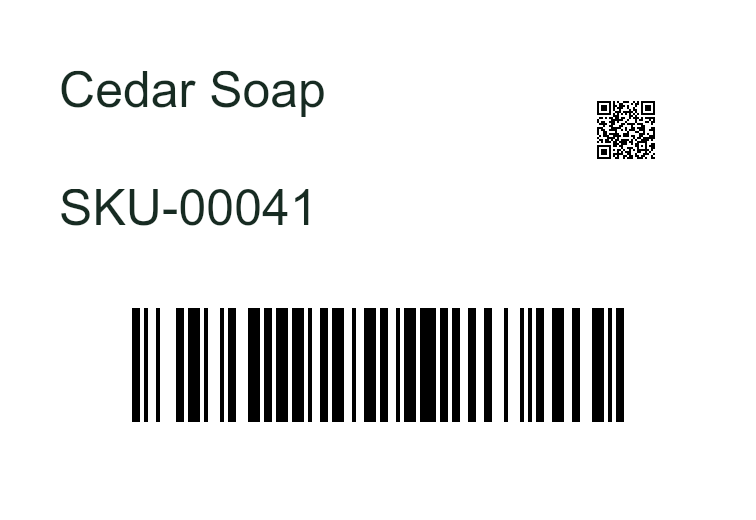
Choose the code for the job
Use Code 128 for your own internal SKU, such as SKU-00041; it accepts printable ASCII. Use EAN-13, EAN-8, UPC-A or UPC-E when you already have the appropriate retail number. These formats validate or calculate check digits as supported by the app; they do not allocate GS1 identifiers. UPC-E supports number system 0 or 1. Use QR for a link or Unicode content. No format guarantees a successful physical scan.
Example data: one row per product
| ProductName | SKU | Link |
|---|---|---|
| Cedar Soap | SKU-00041 | https://example.com/item/00041 |
| Citrus Balm | SKU-00042 | https://example.com/item/00042 |
| Sample Pins | 000007 | https://example.com/item/00007 |
Keep identifiers as text, especially when they begin with zero. Create separate fields for ProductName, SKU, a Code 128 barcode bound to SKU, and a QR code bound to Link. Text and barcode may share SKU; connect the spreadsheet column once.
Design, size and save
Use Frame 60 × 40 mm and Page 64 × 44 mm in this sample only; its 2 mm margins are assumptions, not a claim about all printers. Set the actual printer margins, or choose a larger page while keeping the frame 1:1—never fit-to-resize. Choose One sheet, centre alignment, padding 0, bleed 0 and crop marks off. Add text, barcode and QR fields with one variable each, then save. The sample uses Arial 12 pt for text.
| Kind | Name | Variable | Position | Dimensions | Format / settings |
|---|---|---|---|---|---|
| Barcode | SKU barcode | SKU | 3,22 | 54×14 | Code 128; human-readable text off |
| QR | Product link | Link | 45,3 | 12×12 | Error correction M |
| Text | Product name | ProductName | 3,4 | 40×8 | Arial, 12 pt |
| Text | SKU text | SKU | 3,14 | 38×6 | Arial, 12 pt |
In the editor, add fields using Add text field, Add barcode, and Add QR code; choose Code 128 for the internal SKU and turn Show readable text off. QR error correction is M. Empty unassigned fields paint nothing; an assigned code with an empty value is invalid.
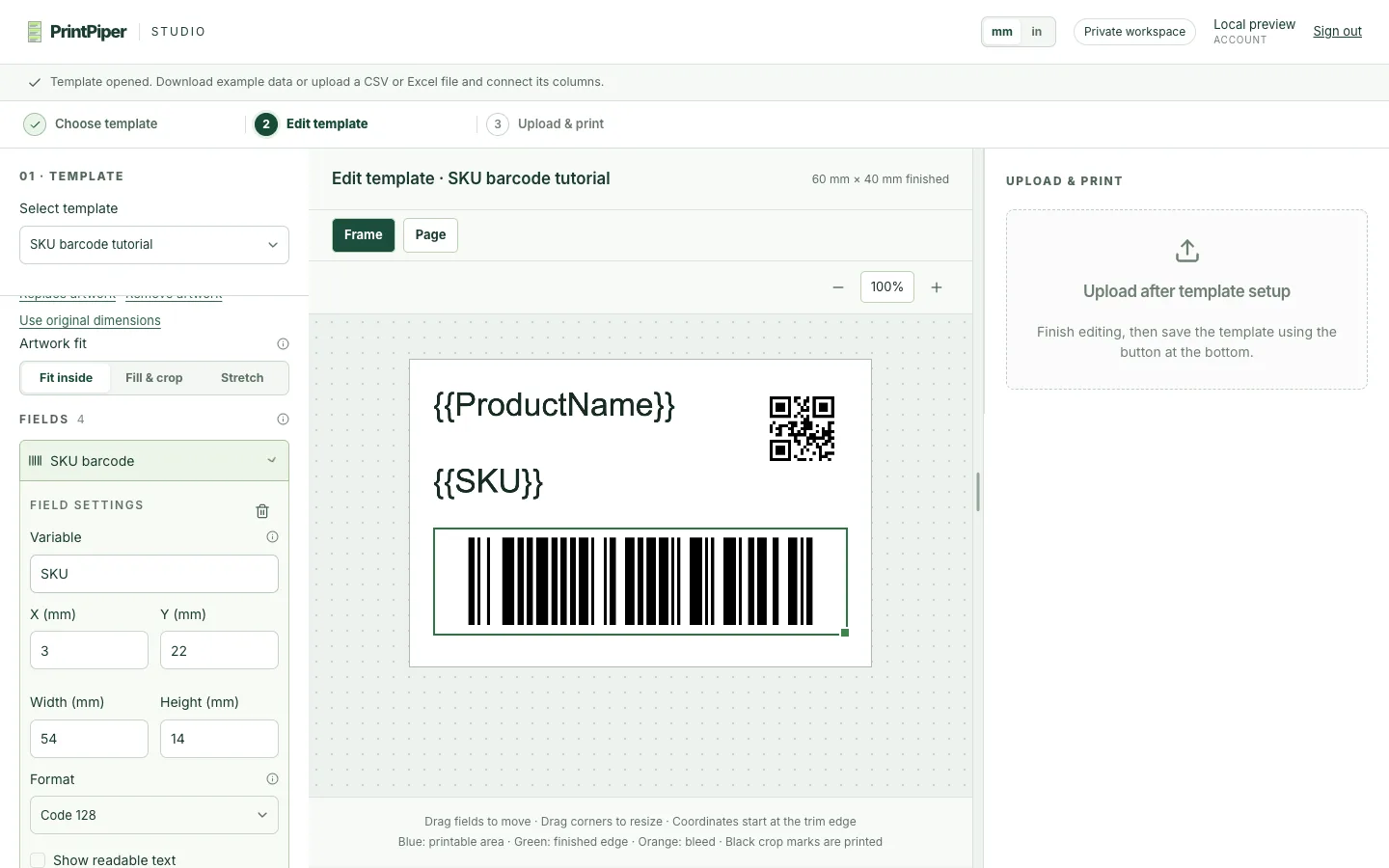
Import Excel or CSV and map fields
The workbook worksheet is SKUs, with headers on row 1. CSV headers are also ProductName, SKU and Link. Map each exact matching header to its variable; SKU is used by two fields but is mapped once. All 3 of 3 variables connect automatically in the example.
| Template variable | CSV / Excel header | Connected |
|---|---|---|
| ProductName | ProductName | Yes |
| SKU | SKU | Yes (used twice) |
| Link | Link | Yes |
Identifiers such as 000007 must be stored as text. If Excel has already removed leading zeroes, the original value cannot be inferred; restore it in the source. Preserve barcode and QR quiet zones—do not cut into them.
Export and test at actual size
Save the template, import the data, click Generate files, then Download. Export names use the template name and CSV basename. This sample creates three 64 × 44 mm pages. Choose Actual size / 100%, not Fit to page, and test on your own printer and scanner. PrintPiper does not support ZPL. No physical printer testing or certification is claimed.
Code 128 here is an internal SKU, distinct from retail EAN/UPC numbers. The example does not allocate GS1 identifiers; no format guarantees a successful physical scan.
Troubleshooting
- Invalid Code 128: use printable ASCII; Unicode belongs in QR.
- Empty value: populate the mapped cell; an assigned code cannot encode an empty value.
- Symbol too small: enlarge the field and retain quiet space around it.
- Lost leading zero: restore it in the source workbook and store the SKU as text.
- Wrong checksum: correct the complete retail number; do not guess or invent an allocation.
See the Excel printing, CSV printing, and product label guides.