 PrintPiperOpen app
 SPREADSHEET PRINTING GUIDE
Print Labels from Google Sheets Without Add-ons
To print labels from Google Sheets, download the active sheet tab as a CSV snapshot. Create and save a label template in PrintPiper, import that CSV, then generate and download a print-ready label PDF with your row values placed on each label. This works for address and mailing labels, Avery 5160 / 8160 sheets, and custom-size label PDFs — without a Sheets add-on, plugin, or Google Drive access.
Before you start: This is a downloaded CSV workflow. PrintPiper does not connect to Google Sheets or Google Drive, and you do not need a Sheets add-on. Sign in with a verified Google account; this does not grant spreadsheet access. Choose custom-size labels or Avery 5160 / 8160 sheets with 30 labels per Letter page. The CSV snapshot and the resulting label PDF stay on your device.
See the PDF, then try your own spreadsheet
Download the fictional sample without signing in. To make your own batch, sign in, save a template, import Excel or CSV, connect columns and export PDF. Free includes 10 records per export. The 30-address sample PDF is a preview; select up to 10 rows to try it on Free.
1. Prepare the sheet you want to print
Use row one for unique headers such as Name, Address, City, State, and PostalCode. Each subsequent row should contain one label’s data. Remove title rows and merged cells, and set identifier or postal-code columns to plain text before entering values.
The same layout works for address labels, mailing labels, and Avery 5160 / 8160 sheets. One row in the sheet becomes one printed label after import.
| Name | Address | City | State | PostalCode |
|---|---|---|---|---|
| Alex Example | 12 Sample Lane | Exampleville | MA | 01234 |
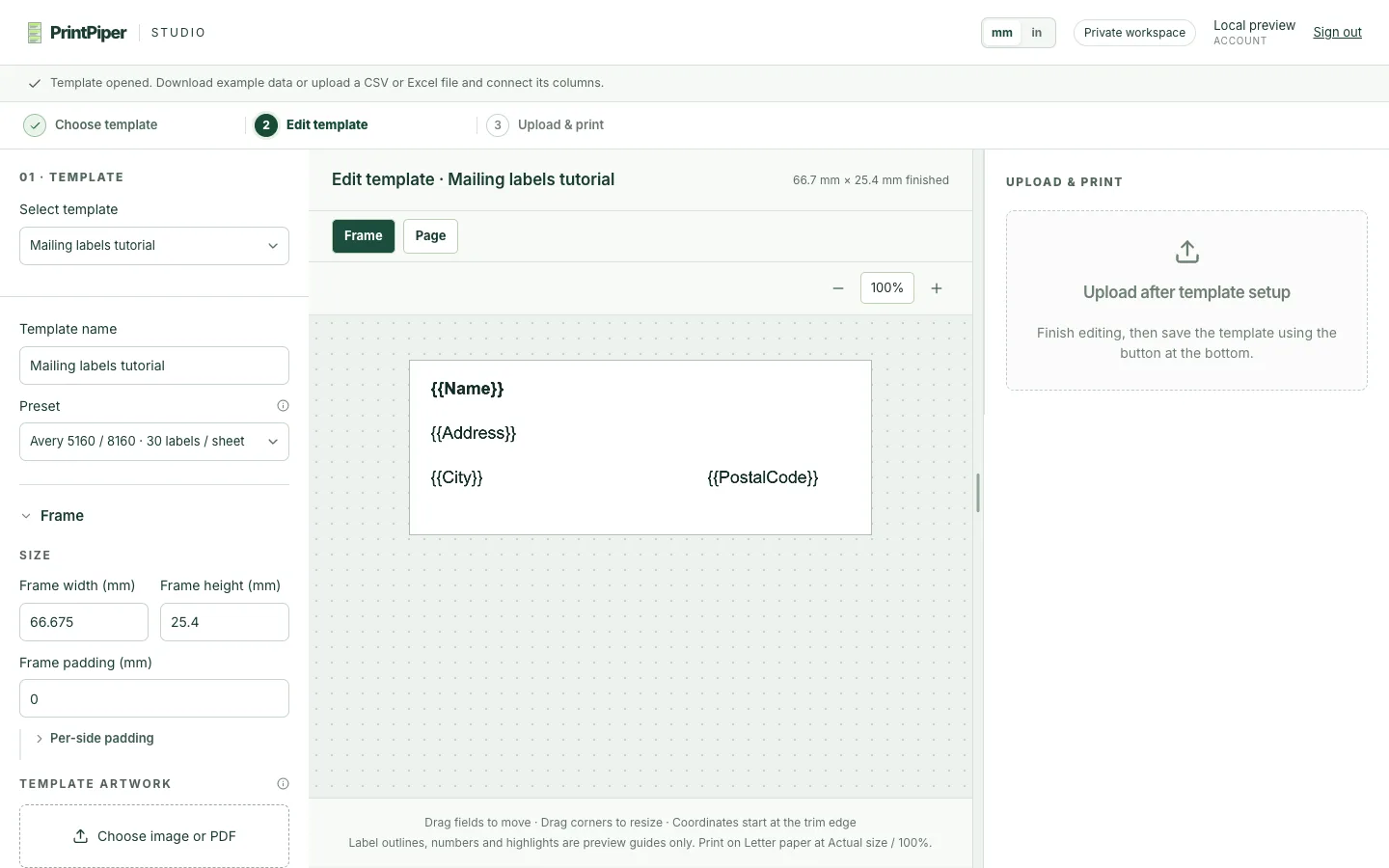
Add one text field per value and bind exactly one variable to each field. Give every field an explicit width and height, then position the fields on the label:
| Text field | Variable | Width × height | Place it on |
|---|---|---|---|
| Name | {{Name}} | 60 × 6 mm | First line, left |
| Address | {{Address}} | 60 × 6 mm | Second line, left |
| City | {{City}} | 30 × 6 mm | Last line, left |
| State | {{State}} | 14 × 6 mm | Last line, after City |
| PostalCode | {{PostalCode}} | 18 × 6 mm | Last line, after State |
City, State and PostalCode sit side by side on the last line, so their positions alone set the spacing. No field ever holds more than one variable, and PrintPiper adds nothing between fields — append a comma to the City value if your label style uses one.
To print a conventional block from a single cell instead, put the whole multiline address in one spreadsheet column, such as a FullAddress column, and bind one {{FullAddress}} field to it. A cell may contain line breaks and the field prints them as written. Never mix two variables, or a placeholder with fixed text, in the same field. Barcode and QR code fields follow the same rule: one variable per field.
The example row prints as:
Alex Example
12 Sample Lane
Exampleville MA 01234
2. Download the active tab as CSV
Select the tab containing your records, then choose File → Download → Comma-separated values (.csv). This exports the current sheet’s values, not every tab or the spreadsheet’s formatting. See Google’s spreadsheet export guide for the download workflow. PrintPiper reads only the CSV snapshot you choose on your device; it cannot see or update your live sheet.
Check the CSV in a text editor before importing it. If you need a particular date, currency, or price representation on your labels, confirm that the downloaded values contain the exact text you want printed. Leading zeroes in postal codes survive when the source column is formatted as plain text.
3. Choose or create a label template
Open PrintPiper and use Select template to reuse a saved design, or New template to start a design. Use a blank page or import PDF or image artwork. Add text fields containing column placeholders such as {{Name}}; each field holds exactly one placeholder, so put Name, Address, City, State and PostalCode in separate fields.
Choose a label preset or enter dimensions in millimeters or inches. For example, Product · 50 × 30 mm suits a small product label; Badge · 90 × 60 mm is a name-badge format. For mailing labels, choose Avery 5160 / 8160 · 30 labels / sheet and design one label. Confirm the actual stock dimensions before printing.
4. Save before importing the CSV
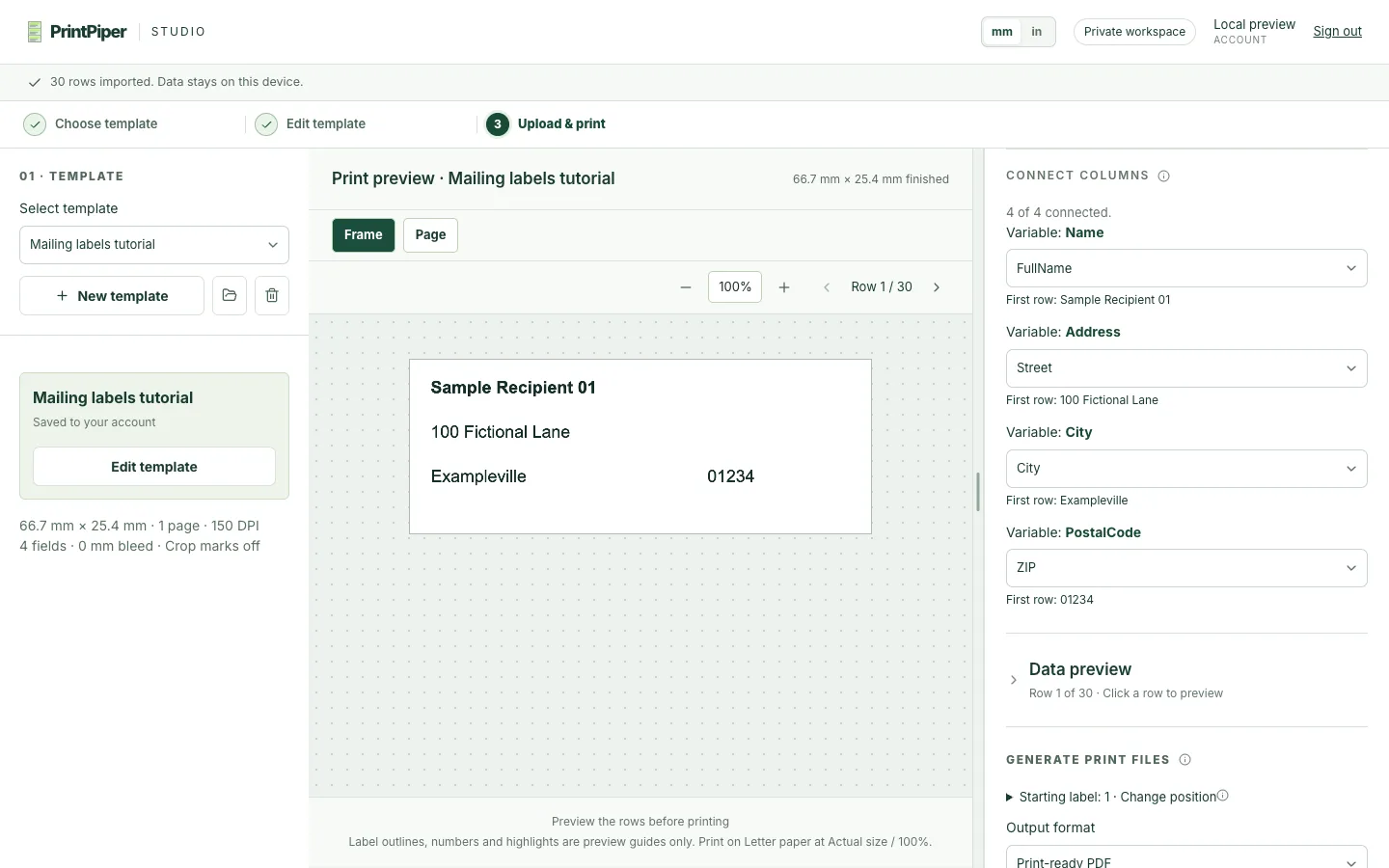
Choose Save template at the bottom. After the save succeeds, select Import CSV / Excel in the right panel and choose your downloaded file. Check the listed column names and preview records. Exact names connect automatically. If a variable has a different name from its CSV header, use Connect columns to select the corresponding column. Connect every required variable before generating files.
Saving stores the template artwork and field settings in your account. CSV data and generated print files stay on your device. You can reuse the saved template with a new CSV next time.
5. Generate, download, and print your labels
Preview long names, multi-line addresses, and prices. If text overflows, edit the field size or enable Shrink text to fit, then save the template again. Choose a row range and Print-ready PDF, PNG images · ZIP or TIFF images · ZIP, then click Generate files. When generation finishes, click Download beside each file. File names and sizes are shown before you download.
Print the PDF at Actual size or 100%, with the printer paper size matching the exported page. Start with one record to check size and alignment. Standard templates generate one label per template page and CSV row; Avery 5160 / 8160 mode places up to 30 records on each Letter sheet as address labels or mailing labels. Larger PDF batches produce separate PDF parts. Download all parts before leaving the page or generating another batch.
Fix common Google Sheets label problems
Most problems come from the CSV snapshot or the template connections, not from the Sheets tab itself. Check these first.
| Problem | Likely cause | What to do |
|---|---|---|
| Postal codes lost leading zeroes | The zeroes were already gone in the source before import, for example a number-formatted cell or a spreadsheet that dropped them on CSV export. PrintPiper cannot restore digits that are not in the file. | Fix the source column so it is plain text, re-enter the values, download the CSV or XLSX again, then import the new file. |
| A variable shows no value | The template variable is not connected to a CSV or Excel column, or the header row was not selected. | Open Connect columns and map every variable. Export stays blocked until each used variable has a column. |
| Long text is cut off or crowds the label | The field is smaller than the longest value in the batch. | Check the longest records in the preview, enlarge the field or enable Shrink text to fit, save the template, and generate again. |
| PDF prints too small or too large | The print dialog scaled the page, for example Fit to page or a non-100% scale. | Print at Actual size or 100% on the paper size shown in the export, then measure a single test label before printing the batch. |
Before you import, open the CSV in a text editor. The first line must hold unique headers, the file must be the tab you meant, and each row must have the same number of values. Fix the sheet and download again if any of these are wrong.
Questions about labels from Google Sheets
Will labels update automatically when I edit my sheet?
No. The CSV is a snapshot. Download a fresh CSV and import it into the saved template whenever your sheet changes. There is no live sync, background connection, or Google Sheets plugin running.
Do I need to publish or share my sheet?
No. Download the CSV yourself and keep your spreadsheet’s existing sharing settings. PrintPiper does not need a public spreadsheet link, publish-to-web setting, or Google Drive permission. Its Google sign-in is for account access only.
Can I print Google Sheets to Avery 5160 labels?
Yes. Download the active Google Sheets tab as CSV, choose Avery 5160 / 8160 · 30 labels / sheet as the Preset, design one label, save the template, and import the downloaded CSV. Thirty records fill one Letter sheet; unused positions remain blank. See the Avery 5160 / 8160 guide for starting positions and alignment.
Can I send Google Sheets to a label PDF without an add-on?
Yes. The Sheets-to-label workflow described above produces a print-ready PDF without a Sheets add-on or browser extension. Download the active sheet as CSV, save a label template, and choose Print-ready PDF when you generate files. PNG and TIFF images are also available as ZIP parts if your printer prefers raster output.
How do I print mailing labels from Google Sheets?
Mailing labels use the same workflow as address labels: download the sheet as CSV, choose an Avery 5160 / 8160 label stock for 30-up Letter sheets, design one label that fits the stock, save the template, and import your mailing list. Connect the Name, Address, City, State, and PostalCode columns and generate the PDF.
Why are some fields missing?
Check that you downloaded the intended sheet tab and that the first row contains your headers. In Connect columns, connect each template variable to its CSV column. Exact names connect automatically; a {{Name}} field can also be connected to a differently named column. Duplicate or empty headers and rows with a different number of values must be fixed before import.
Can I upload the Excel version of my sheet?
Yes. PrintPiper also accepts downloaded .xlsx and .xls workbooks. Import the Excel file, choose the tab containing your records if there are multiple visible sheets, and click the row with column names. Then choose Import records. A single visible sheet is selected automatically. This is still a local snapshot, with no live connection. PDF and image uploads are separate template artwork.