 PrintPiperOpen app
 SPREADSHEET PRINTING GUIDE
Avery 5160 / 8160 Label Template from Excel or CSV
PrintPiper fills Avery 5160- and 8160-compatible Letter sheets from Excel, CSV, or TSV data. Design one 1 × 2⅝ inch label, then place consecutive records across 30 positions in a 3 × 10 grid.
Need an Avery 5160 Excel template?
You do not need to lay out 30 cells in Excel or use Word Mail Merge. Import your existing XLSX or XLS address list into PrintPiper and use the Avery 5160 / 8160 preset to generate printable label sheets. The starter download is a CSV you can open in Excel, not an XLSX workbook with a printable label grid.
Sample downloads need no sign-in. To use your own list, sign in, choose the preset, add fields and save the template before importing your spreadsheet. Free supports 10 records per export; the 30-label sample is a preview, not a promise of 30 records on Free.
Print setup: use US Letter paper and print at Actual size or 100%. Turn off Fit, Shrink, and other page scaling. Test on plain paper before using label stock.
Download a free Avery 5160 starter template
“Avery 5160 template” can mean two different files. Avery’s official page supplies blank Word, Google Docs and PDF templates that you type into by hand. A data template is a spreadsheet with one column per field and one row per label, which a label tool fills automatically. PrintPiper uses the second kind.
Download the free Avery 5160 CSV template below — a blank data template with only the header row. Open it in Excel, Google Sheets or Numbers, add one row per recipient, then import it into PrintPiper. The headers are Name, Address, City, State and PostalCode, so they map directly to a standard address-label design.
The two PrintPiper PDFs are free, self-generated reference sheets, not Avery’s official files or editable Word templates. Both use Letter paper with 30 outlined 2⅝ × 1 inch positions. The alignment test adds position numbers and a one-inch ruler. Print only on plain paper at Actual size / 100% and measure the ruler first. The outlines and numbers intentionally print; do not use these files as finished mailing labels. For filled labels without outlines, use the worked example below.
Follow the Excel import guide to load the workbook, or the address-label guide to build the mailing address block first. If you only need a blank sheet to type on, use Avery’s own template. If you have a list and want all 30 positions filled automatically, use the CSV and the browser workflow.
Avery 5160 / 8160 sheet dimensions
Avery lists template 5160 as 30 white address labels per US Letter sheet, with each label measuring 1 × 2⅝ inches. The fixed layout uses three columns and ten rows. See the official Avery 5160 template page.
Avery confirms that 5160 and 8160 share this template. The product numbers distinguish printer compatibility: 5160 is laser stock and 8160 is inkjet stock. Use the printer setting specified on your label package.
| Paper | US Letter, 8.5 × 11 inches |
|---|---|
| Label | 2.625 × 1 inch |
| Grid | 3 columns × 10 rows |
| First label | 0.1875 inch from the left, 0.5 inch from the top |
| Pitch | 2.75 inches horizontal, 1 inch vertical |
1. Design one label
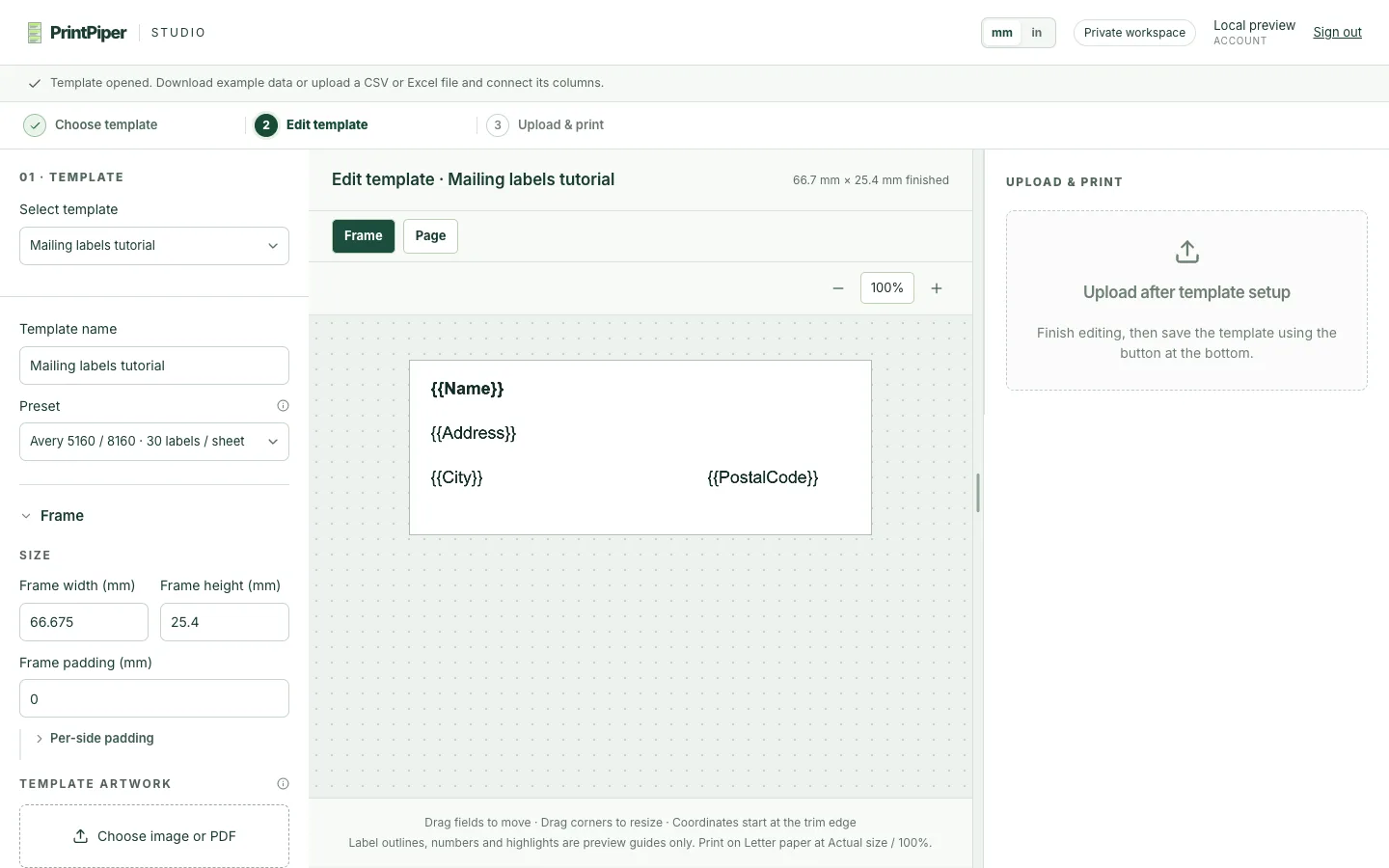
Create a template and choose Avery 5160 / 8160 · 30 labels / sheet under Preset. The editor shows one label at its physical size. Add reusable variables such as {{Name}}, {{Address}}, and {{PostalCode}}, or add single-page PDF or image artwork. Multi-page artwork is rejected for this stock.
Switch between Frame (one label) and Page (the whole sheet) previews. Sheet outlines, position numbers, and the selected-row highlight are preview guides and do not print.
2. Import Excel or CSV records
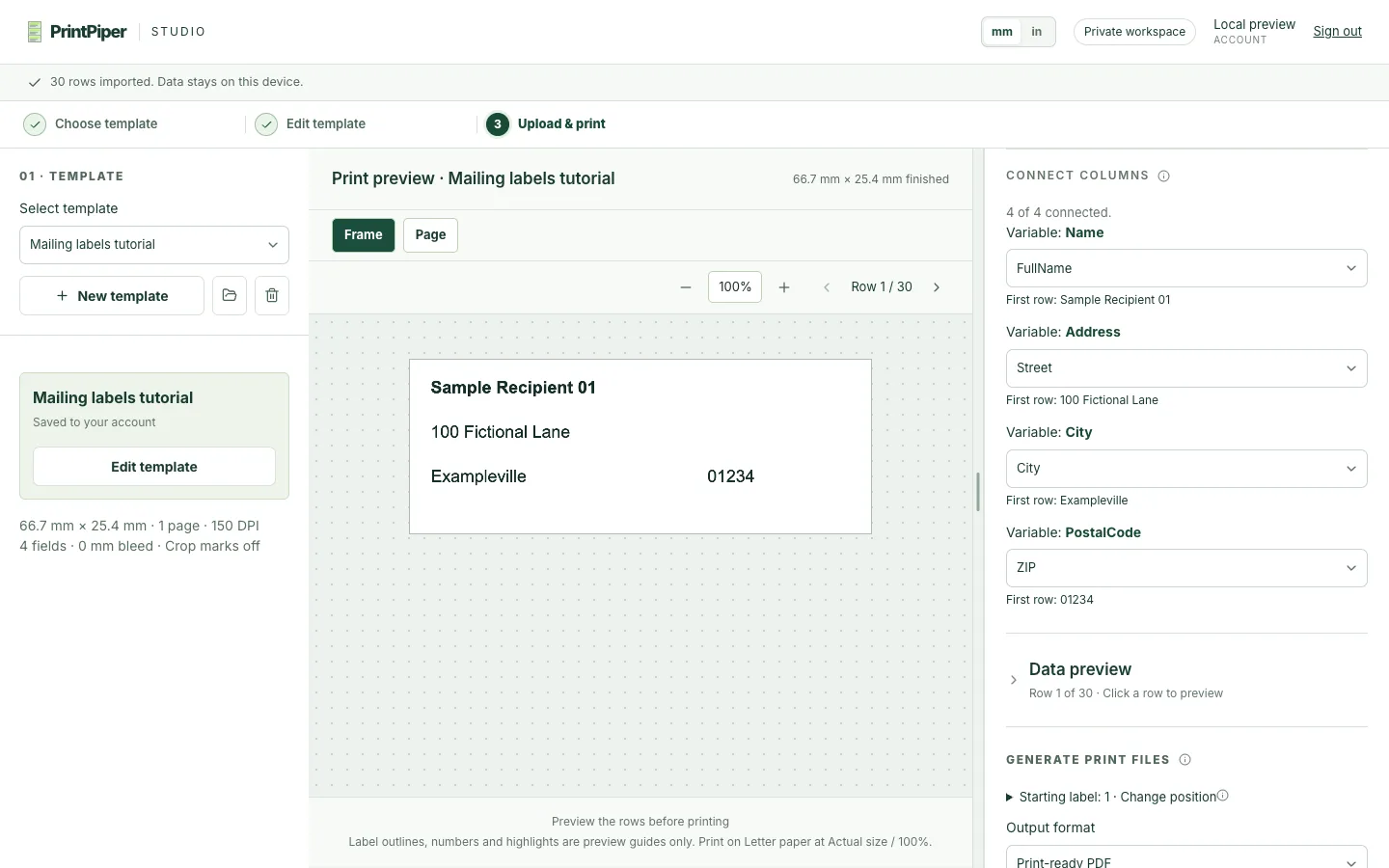
Save the template, then use Import CSV / Excel. XLSX, XLS, CSV, and TSV are supported. For Excel, choose the visible sheet containing your records and click the row with column names. Map those columns to template variables, then check several records in the whole sheet preview.
Records fill left to right and then top to bottom. Thirty records fill one Letter sheet; 31 records use two sheets. Unused positions on the last sheet remain blank.
3. Start on a partly used label sheet
Open Starting label and choose position 1–30. The choice applies only to the first sheet and the current batch. For example, two records starting at position 30 place one record in the last position of sheet one and the next in position one of sheet two.
4. Generate, download, and align
Choose PDF, PNG, or TIFF, then click Generate files. Each PDF page or image contains a complete Letter sheet. When the files are ready, click Download for every part.
Printer margins define the physical area your printer can reach; they do not move or resize the Avery grid. If the printed grid is shifted, adjust Print alignment X/Y, which moves the whole grid by up to 5 mm. Print another plain-paper test and compare the upper-left, center, and lower-right labels before using the adhesive sheet.
Avery 5160 / 8160 is pre-cut stock, so bleed and crop marks are disabled. At 600 DPI a full Letter sheet exceeds the browser pixel limit; choose 150 or 300 DPI instead.
Fix alignment and print problems
Measure a plain-paper test before you change any setting. The cause determines the fix: a constant offset is adjusted with X/Y, while a gap that grows down the page points to scaling in the print dialog.
| Problem | Likely cause | What to do |
|---|---|---|
| Whole grid is shifted by the same amount | A consistent offset from the printer feed or the print dialog position, with the labels the same distance off at the top and bottom. | Confirm Letter paper at Actual size / 100%, then change Print alignment X/Y in small steps (up to 5 mm). Positive X moves right; positive Y moves down. |
| Error grows from top to bottom | Scaling in the print dialog, such as Fit, Shrink or borderless scaling. X/Y cannot correct a size change. | Turn off all scaling and reprint the alignment test. Compare the first and last rows against the one-inch ruler before adjusting X/Y. |
| Postal codes lost leading zeroes | The zeroes were already gone in the source before import, for example a number-formatted cell or a spreadsheet that dropped them on CSV export. PrintPiper cannot restore digits that are not in the file. | Fix the source column so it is plain text, re-enter the values, download the CSV or XLSX again, then import the new file. |
| A variable shows no value | The template variable is not connected to a CSV or Excel column, or the header row was not selected. | Open Connect columns and map every variable. Export stays blocked until each used variable has a column. |
| PDF prints too small or too large | The print dialog scaled the page, for example Fit to page or a non-100% scale. | Print at Actual size or 100% on the paper size shown in the export, then measure a single test label before printing the batch. |
Long text that crowds a 2⅝ × 1 inch label is best fixed in the editor: shorten the field content or enable Shrink text to fit, then save and generate again. Do not change the paper size to make room.
Worked example: 30 CSV addresses on one Letter sheet
Follow this fictional mailing list from data through column mapping to a generated PDF. The full 30-record export requires Base or Pro. On Free, select rows 1–10 to test the same design. The sample files below are available without signing in.
- Download the 30-row example CSV. Headers are FullName, Street, City and ZIP; the first ZIP is 01234.
- Create an Avery 5160 / 8160 template at 150 DPI. Use US Letter paper (612 × 792 pt), 3 mm printer margins, and no alignment offset, bleed or crop marks. Each label is 66.675 × 25.4 mm.
- Add four separate text fields, one for each variable below. All fields use Arial 7 pt, shrink text to fit, and a transparent background; only Name is bold. Positions and sizes are in millimetres.
| Template variable | X / Y | Width × height | Bold | Font and other settings |
|---|---|---|---|---|
| {{Name}} | 3 / 3 mm | 60 × 5 mm | Yes | Arial 7 pt; shrink to fit; transparent background |
| {{Address}} | 3 / 9.5 mm | 60 × 5 mm | No | Arial 7 pt; shrink to fit; transparent background |
| {{City}} | 3 / 16 mm | 38 × 5 mm | No | Arial 7 pt; shrink to fit; transparent background |
| {{PostalCode}} | 43 / 16 mm | 20 × 5 mm | No | Arial 7 pt; shrink to fit; transparent background |
After saving the template, import the CSV in the right panel and connect these columns:
| Template variable | CSV column | Connection |
|---|---|---|
| {{Name}} | FullName | Manual |
| {{Address}} | Street | Manual |
| {{City}} | City | Automatic |
| {{PostalCode}} | ZIP | Manual |
Choose Starting label 1 and rows 1–30. Record 1 occupies the upper-left label, record 3 the upper-right label, and record 30 the lower-right label.
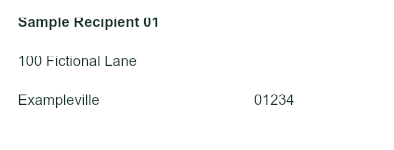
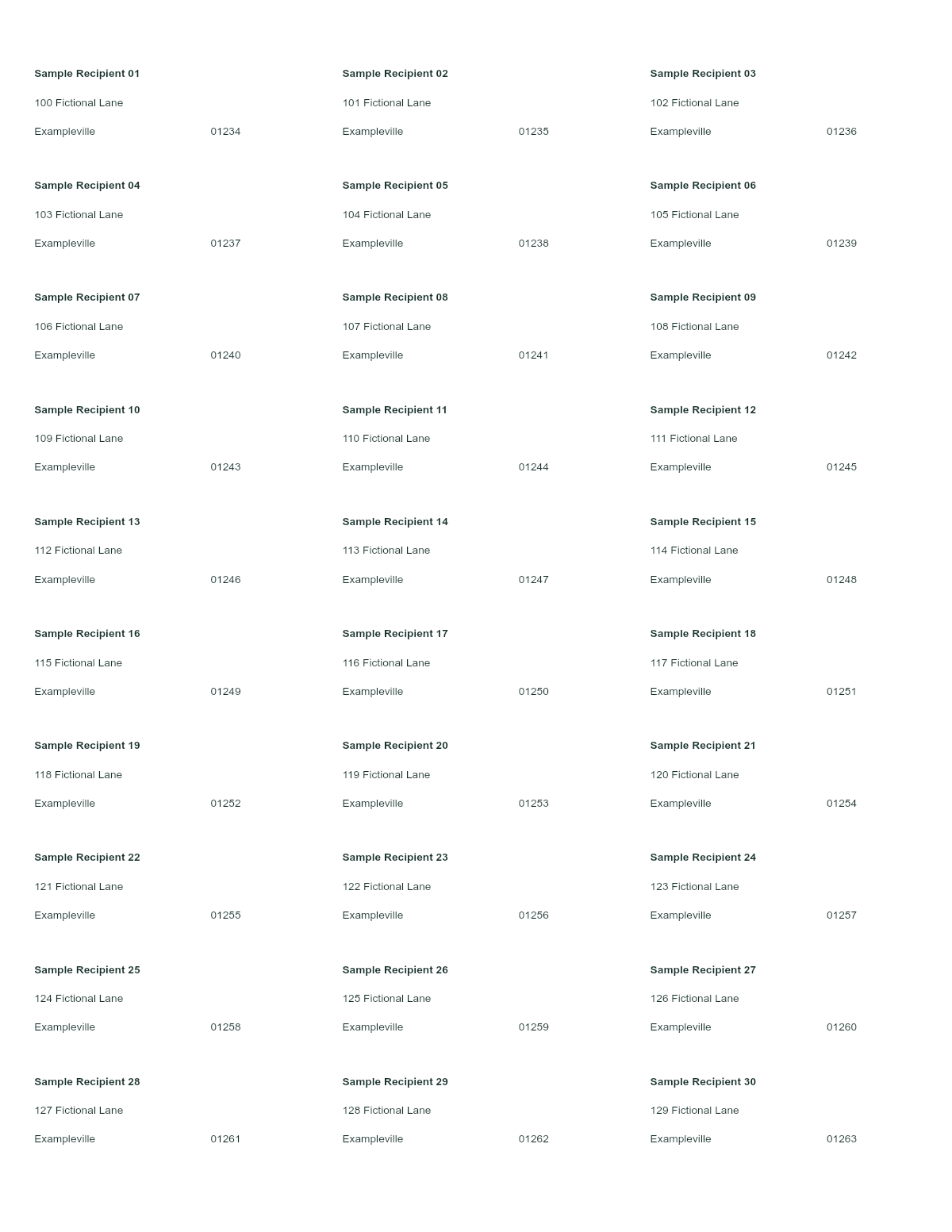
Select Print-ready PDF, click Generate files, then Download. Download the generated one-page Letter PDF. It is 8.5 × 11 inches (612 × 792 PDF points), with 30 occupied positions.
Print on plain Letter paper at Actual size / 100%, with Fit and Shrink disabled. Compare against your label stock before printing on adhesive sheets. Each label region is 2⅝ × 1 inch (66.675 × 25.4 mm); the text begins 3 mm inside it. The exported file has no label outlines.
Reproduce the example
Template settings JSON and mapping reference describe the setup. Recreate the settings in the editor; JSON is a reference, not an app import format. All data is fictional. The preview and files are generated deterministically with PrintPiper’s parser, renderer and export engine; no AI artwork is used. A generated PDF is not proof of physical printer alignment: check scale and placement with a paper test before using adhesive stock.
Avery 5160 / 8160 questions
Are Avery 5160 and 8160 the same template?
Yes. Both use 30 labels measuring 1 × 2⅝ inches on a Letter sheet and share the same grid. Use 5160 with a laser printer and 8160 with an inkjet printer, as Avery specifies.
Is the starter an XLSX label-layout template?
No. It is a CSV data template with Name, Address, City, State and PostalCode columns, not an Excel workbook arranged as 30 printable labels. Open the CSV in Excel to enter recipients, or import an existing XLSX or XLS workbook directly. PrintPiper applies the label grid and exports PDF, PNG or TIFF, not an XLSX layout file.
Can I print Avery labels directly from Excel without Word?
Yes. Import XLSX or XLS directly, choose the worksheet and column-name row, and connect columns to your label variables. CSV and TSV are also supported. PrintPiper generates the 30-position sheet without Word Mail Merge.
How many Avery 5160 labels fit on one sheet?
Thirty labels fit on each Letter sheet: three columns by ten rows. One record uses one label. The 31st record begins a second sheet.
Can I print on a partially used label sheet?
Yes, when the unused labels are consecutive. Choose the first available position from 1–30 before generating. PrintPiper fills the remaining positions in order and continues on a new sheet. Arbitrary scattered empty positions are not supported.
Why do labels drift farther out of alignment down the page?
Progressive drift usually means the print dialog scaled the page. Use US Letter and Actual size / 100%; disable Fit, Shrink, and borderless scaling. X/Y alignment fixes a consistent whole-page shift, but it cannot correct scaling that grows from top to bottom.
Why is the whole sheet consistently too high, low, left, or right?
First confirm Letter paper and 100% scaling. Then print on plain paper and adjust Print alignment X/Y. Positive X moves the grid right; positive Y moves it down. Printer margins only validate printable bounds and do not move the grid.
Do the label outlines and position numbers print?
No. Outlines, numbers, unused-position shading, and the selected-label highlight are preview guides. The generated file contains only your artwork and text inside occupied labels.
Can one spreadsheet row fill all 30 labels?
Each row prints once. To repeat one design with the same data, duplicate that row 30 times in the imported data. Static templates still require one data row per occupied label.
Does this work with generic 5160-compatible labels?
It works when the package specifies the same 30-up Letter layout and 5160 or 8160 compatibility. Confirm the printed stock dimensions and run a plain-paper test because manufacturing and printer feed tolerances can differ.
Where can I download a free Avery 5160 template?
Avery’s official 5160 page provides blank Word, Google Docs and PDF templates. For a data template that fills all 30 labels from your own rows, download the free CSV template on this page and import it into PrintPiper.
Does Google Docs have an Avery 5160 template?
Google Docs has no built-in Avery 5160 layout. You can open a downloaded template or build a table, but you still type each label. To fill 30 labels from a Google Sheets list, download the sheet as CSV or XLSX and import that snapshot here. The Google Sheets guide covers that export.
What format is an Avery 5160 template?
Avery 5160 is a layout, not one file type. The layout is 30 labels of 1 × 2⅝ inches in a 3 × 10 grid on US Letter paper. It can be delivered as a Word document, a Google Docs file, a PDF, or a spreadsheet data template.