 PrintPiperOpen app
 SPREADSHEET PRINTING GUIDE
Christmas Label Template from Excel or CSV
Turn this year’s card list into printed Christmas labels. Import your Excel or CSV list, reuse a festive design, and PrintPiper fills every position on Avery 5160 / 8160 Letter sheets — 30 address labels per sheet, ready for envelopes and parcels.
Print setup: use US Letter, print at Actual size or 100%, and disable Fit or Shrink. Run one plain-paper test before feeding holiday stock — Christmas sheets are too expensive to misprint.

Download the free Christmas CSV template
The starter template below is a spreadsheet with one column per field and one row per envelope. The headers match a standard address-label design, and the seasonal column Card lets you print labels only for the households on this year’s list.
Fill it in Excel, Google Sheets or Numbers, then follow the address-label guide to build the label design once and reuse it every season.
Pick a blank festive background
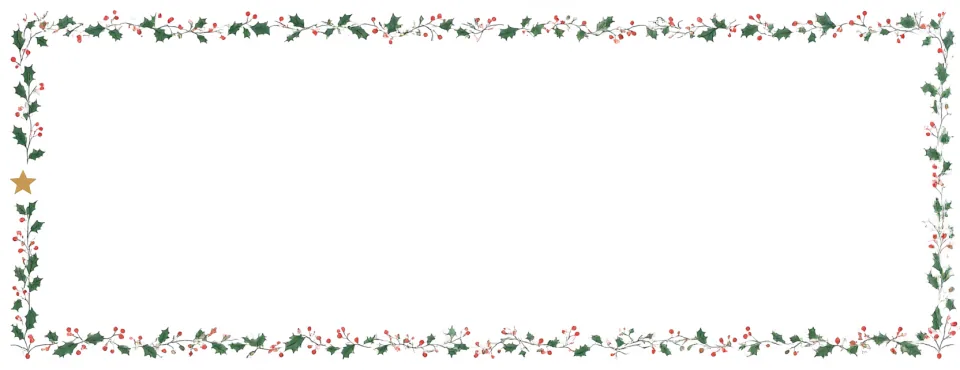
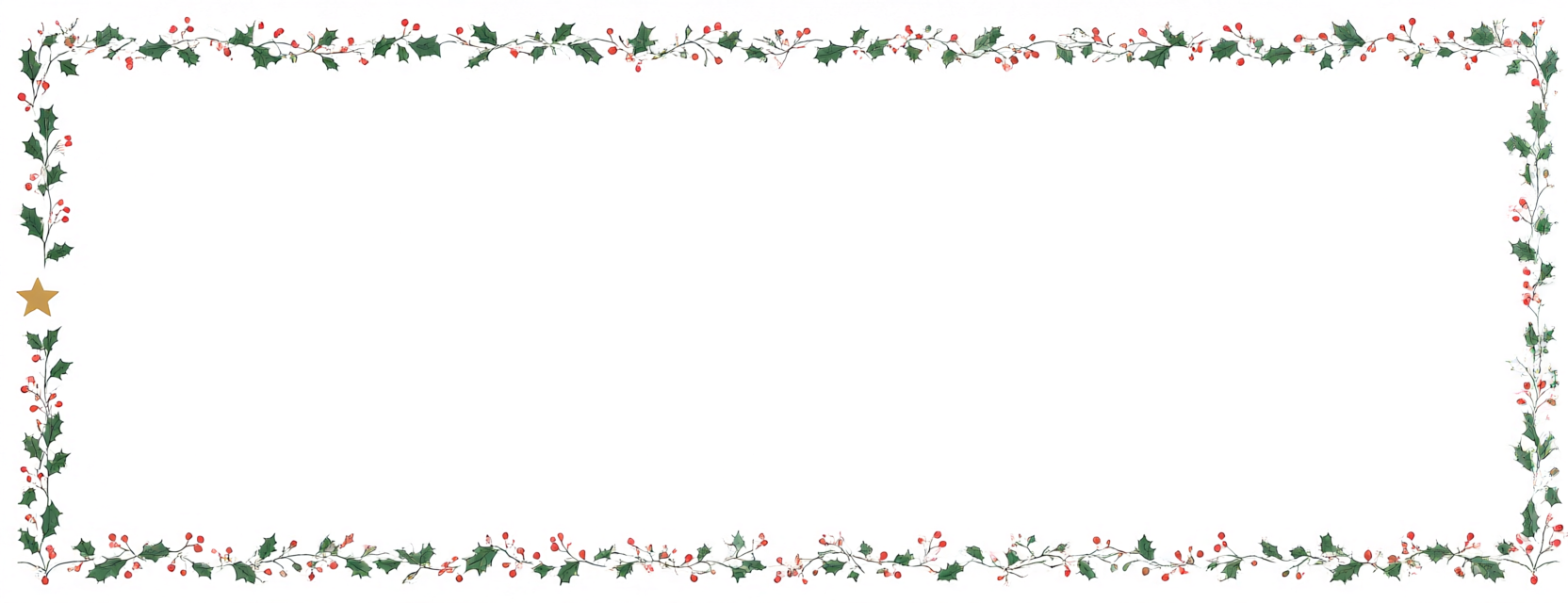
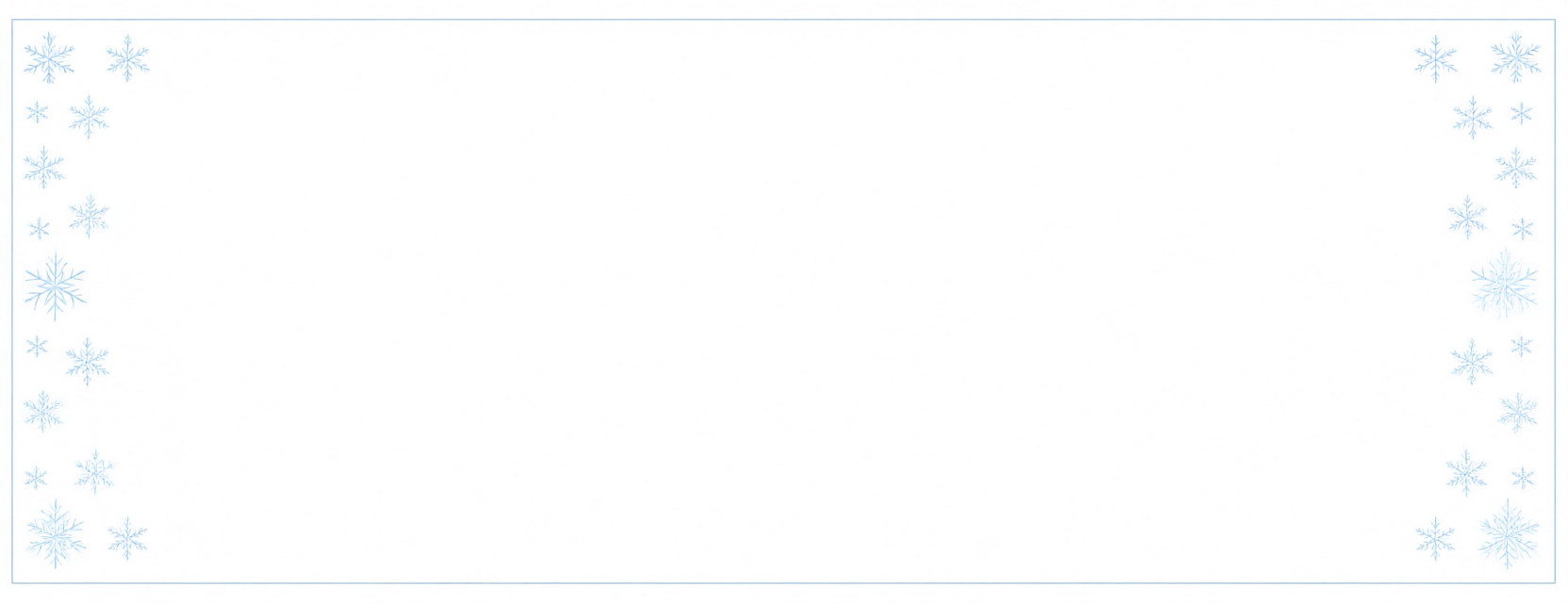
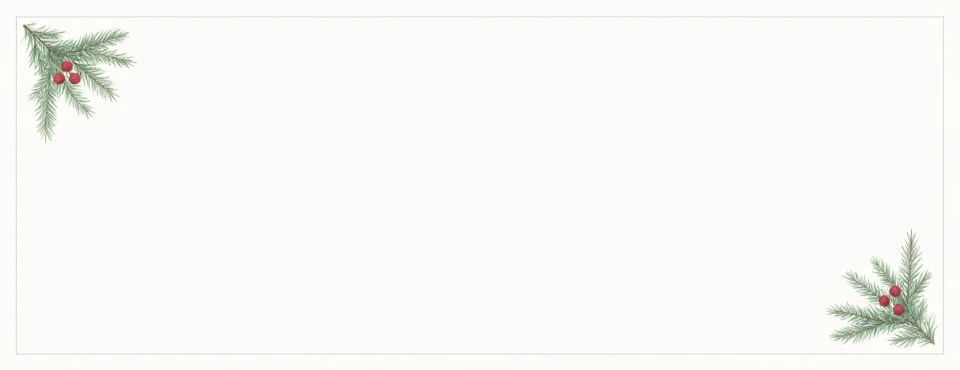
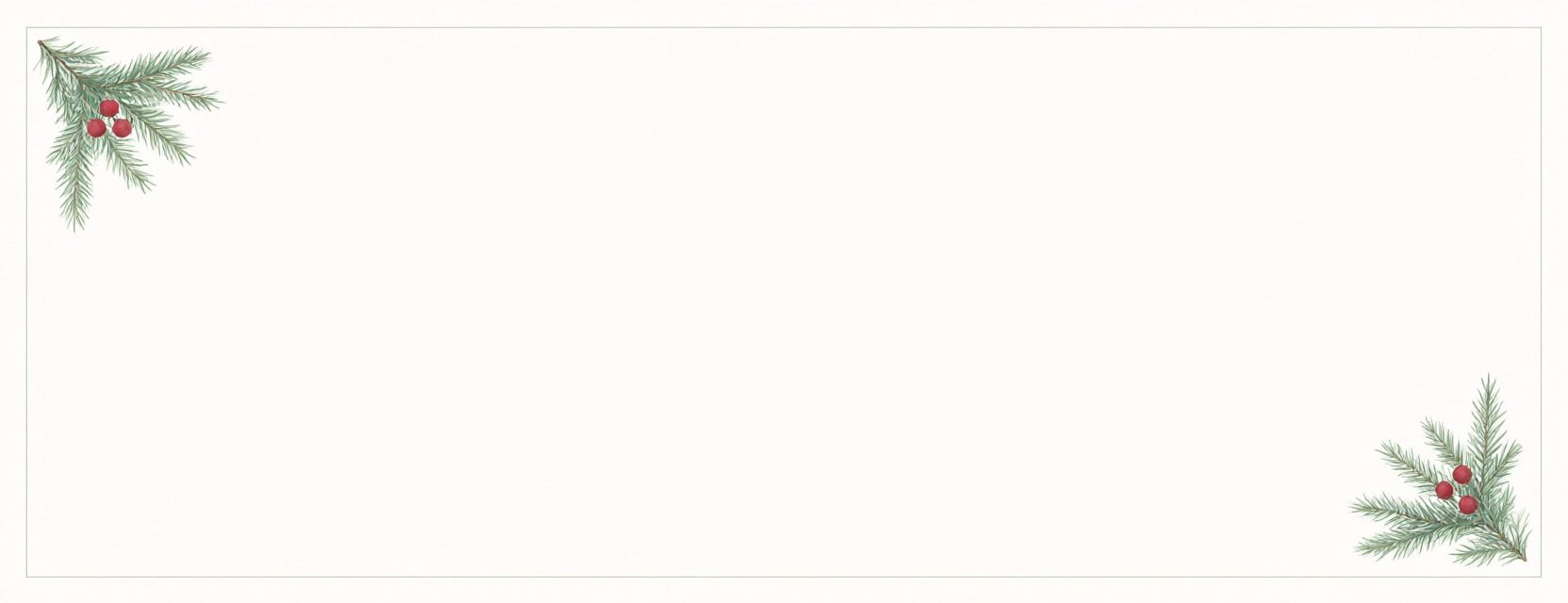
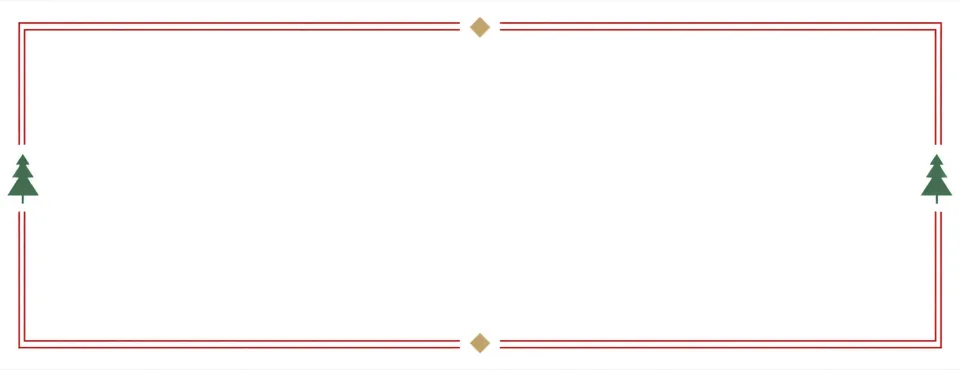
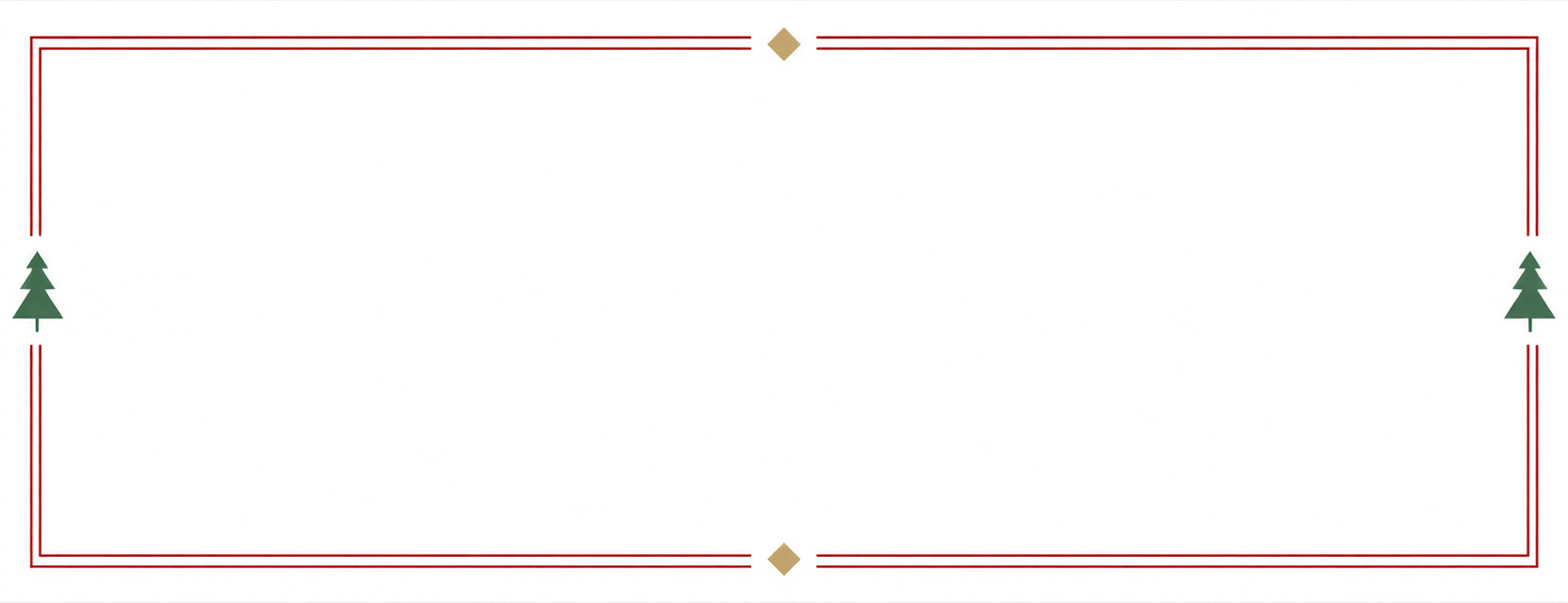
Four blank festive backgrounds match the 2⅝ × 1 inch Avery 5160 / 8160 address-label proportion at print resolution. Each PNG is artwork only — there is no variable text baked into the file, so the printable address block is wide open for your spreadsheet. Download one, import it as image artwork in a 5160 / 8160 template, then add {{Name}}, {{Address}} and {{PostalCode}} fields over the open center.
Holly & berries
Snowflakes

Evergreen sprigs
Nordic motif
Christmas address labels from your list
Choose Avery 5160 / 8160 · 30 labels / sheet under Preset. Add variables like {{Name}}, {{Address}} and {{PostalCode}} to one 2⅝ × 1 inch label, import the CSV, and map the columns. Consecutive rows fill all 30 positions left to right, top to bottom; a 90-card list prints three full sheets.
Prefer bigger labels for parcels? The 5163 guide (4 × 2 in, 10 per sheet) covers large Christmas shipping labels, and the 8167 guide (1¾ × ½ in, 80 per sheet) covers small ones.
Return-address labels
Your own address is one row, repeated. Duplicate the row as many times as labels you need, keep the same five columns, and print a full sheet of return labels in one pass. On 8167 stock, eighty return addresses fit a single Letter sheet — most households need two or three seasons per sheet.
Use festive artwork or plain text
Two design routes work equally well. Add single-page PDF or image artwork — a holly border, a wreath, a snowflake frame — and place the address variables over it; or keep plain text fields and set a red or green text color for a quiet seasonal touch. Artwork stays fixed; only the variable text changes per row.
Keep the address block clear of busy artwork areas so postal scanners read it easily, and prefer matte finishes over glossy stock for inkjet-printed holiday designs.
Print without alignment surprises
Print one sheet on plain paper first and hold it over the Christmas stock against a window. If the grid drifts progressively down the page, the print dialog scaled it — reprint at exactly 100%. A consistent small shift can be corrected with Print alignment X/Y after the scaling check.
Christmas label questions
When should I print my Christmas labels?
Late November is the sweet spot: your card list is usually final, and you still have time to reprint after a plain-paper test. The design and template stay reusable for next year’s list.
Can I print Christmas labels from Google Sheets?
Yes. Download the sheet as Excel or CSV, then import the file. The Google Sheets guide covers the export steps.
Do you have a ready-made Christmas design?
PrintPiper prints your artwork rather than shipping clip-art, so any festive PDF or image you have works. The sample above shows a typical layout: decorative frame, clear address block, one label per row.