# Print Product Labels from Excel with Your Own Design
Canonical source: [Print Product Labels from Excel with Your Own Design](https://printpiper.app/print-product-labels-from-excel/)
Updated: 2026-09-08
To print product labels from Excel, create a reusable label design, save it, and import your product workbook. Map product names, variants, SKUs and prices to the design, then generate a PDF with one label page per product row.
**For small shops and makers:** use the same artwork across a candle collection, handmade goods or a changing price list. PrintPiper accepts XLSX, XLS, CSV and TSV. It generates text labels and PDFs; it does not calculate prices or generate barcodes.
## Prepare one spreadsheet row per printed label
Give every column a unique header. Keep Item, Variant, ItemCode and Price separate so each can use a different font size or position. Store product codes as text when leading zeroes matter. In Excel, format prices exactly as you want them printed, recalculate any formulas and save before importing.
PrintPiper reads saved Excel display values. For CSV, include the currency symbol and decimal places in the value itself, such as $12.00. A Quantity column does not repeat labels automatically: duplicate the row for each copy you need.
## Match the label to your actual stock
The example below uses individual 50 × 30 mm labels. Choose paper that your printer supports at that size, with margins matching its non-printable edges. For pre-cut address sheets, use the [Avery 5160 / 8160 workflow](https://printpiper.app/avery-5160-label-template/) instead. Custom dimensions describe a single page; they do not create an arbitrary multi-label sheet grid.
Upload a clean PDF or image design with space for changing information. Keeping the brand in the artwork and variables in text fields lets you reuse the design with a new stock list. Any label content required for your products must be supplied by you.
## A five-record example you can reproduce
All names, businesses and records in this example are fictional. Five records fit within the Free plan’s 10\-record export allowance. Sign in and save this as your active template before importing the data.
- [Download example CSV](https://printpiper.app/examples/products/data.csv)
- [Download blank artwork](https://printpiper.app/examples/products/background.png)
- [View the five-page PDF](https://printpiper.app/examples/products/output.pdf)
### 1\. Create the design
Choose New template. Set the paper to 50 × 30 mm at 300 DPI and all four printer margins to 2 mm. Use direct printing with bleed and crop marks off. Add the blank artwork above under Image / PDF template and choose Contain.
**Text field positions and styling**
Positions are measured from the upper-left corner of the finished page. Give every field a transparent background, dark green text (#193b31) and Shrink text to fit. Use Arial unless specified below.
Paper and Pine product labels — field settings
| Field / content | X / Y (mm) | W × H (mm) | Type |
| --- | --- | --- | --- |
| **Brand**
PAPER & PINE | 4 / 3 | 42 × 4 | 6 pt bold, left |
| **Product**
{{ProductName}} | 4 / 9 | 42 × 5 | 10 pt bold, left |
| **Variant**
{{Variant}} | 4 / 15 | 42 × 4 | 6 pt, left |
| **SKU**
SKU {{SKU}} | 4 / 23 | 24 × 3 | 5.5 pt, left |
| **Price**
{{Price}} | 30 / 22 | 16 × 5 | 10 pt bold, right |
[Download full template settings](https://printpiper.app/examples/products/template.json) for reference. Recreate these settings in the editor; template JSON is not an app import format.
### 2\. Save, import and connect columns
Click Save template. In the right panel, choose Import CSV / Excel and select the example CSV. Under Connect columns, use the mapping below. Matching names connect automatically; the other connections are manual.
Template variable → spreadsheet column
| Variable | Column | First value |
| --- | --- | --- |
| {{ProductName}} | Item | Cedar Candle |
| {{Variant}} | Variant | Amber glass · 120 g |
| {{SKU}} | ItemCode | 00041 |
| {{Price}} | Price | $12.00 |
[Download the mapping reference](https://printpiper.app/examples/products/mapping.json). Connections apply to this batch and are not saved in the template.
### 3\. Preview, generate and download
Select the first row, then the fifth row to check the longer values. Choose Print-ready PDF and rows 1–5, click Generate files, and wait for completion before clicking Download. The result is five pages, one for each record.
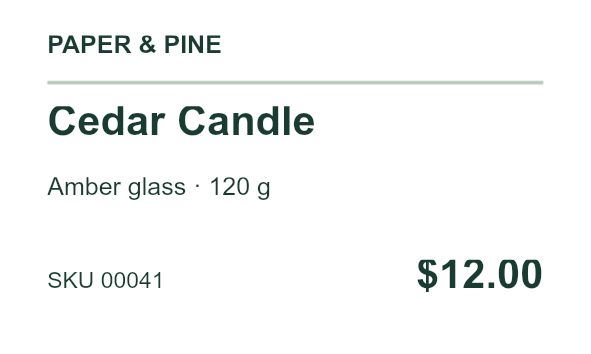
First record, generated with PrintPiper at 50 × 30 mm. This is a file preview, not a physical-print photograph.
### 4\. Test on the matching paper
Print at Actual size / 100%, with printer paper matching 50 × 30 mm. Measure one test print before using your final stock. This example uses one design per page; it does not arrange several product labels on a larger sheet.
## Product label questions
### Can I use my own brand artwork?
Yes. Add a PDF, PNG, JPEG, WebP or TIFF as the template background. The same artwork repeats for every row; spreadsheet columns supply variable text. The sample Paper & Pine name is fictional.
### Why did an SKU or price change?
Check the source first. CSV keeps existing zeroes; Excel imports display formatting. If your spreadsheet already removed digits, restore them there. Format currency in the workbook, or put the exact price text in CSV.
### How do I fit a longer product name?
Select the longest record in the preview. Make the field taller or wider, reduce the font size, or enable Shrink text to fit. Save template changes before generating another batch.
### Can I print barcodes or send ZPL to a thermal printer?
This workflow generates text and artwork as PDF, PNG or TIFF. It does not generate barcode symbols or ZPL commands. Print the downloaded PDF through a compatible printer driver.
For workbook selection and formula handling, follow the [Excel import guide](https://printpiper.app/print-labels-from-excel/). For quoting and header preparation, use the [CSV printing guide](https://printpiper.app/print-labels-from-csv/).